In game development, some aspects of creating 3D scenes can initially seem quite fiddly or manual. Creating, placing and aligning objects in 3D space via an editor UI is slow and error prone, and it's difficult to quickly iterate on a scene when its layout is hard-coded across a large number of objects. Luckily, such tasks are also perfect for automation! These are a few of the ways I've found to automate things in Godot and speed up 3D scene construction.
Pre-save hooks
To actually run a script in the editor, we need a @tool directive at the top of ths script (see the docs). By default this won't actually do anything - top-level code in GDScript classes is not supported, so we need to provide an entry point for our tool script to run. The simplest choice is _process(), a function which is called by the engine every frame. This does work, but is not ideal for a few reasons. For one we need to add a check like Engine.is_editor_hint() to make sure our code only runs in the editor. It's also pretty inefficient: _process can runs hundreds of times per second whereas we likely only need our code to run once!
A much neater approach is pre-save hooks, which allow a function to run in the editor every time a scene is saved. The obvious use case here is snapping nodes to a grid or similar layout, but you're by no means limited to node positioning - tool scripts can access any node properties runtime scripts can.
All nodes in Godot have a _notification method which allow them to respond to various editor or game events. There are a huge number of notifications available, but the one we want is NOTIFICATION_EDITOR_PRE_SAVE, which is emitted before the scene is saved by the user:
func _notification(what: int) -> void:
  if what == Node.NOTIFICATION_EDITOR_PRE_SAVE:
    reposition_nodes()
As mentioned, the implementation of reposition_nodes() can access any node properties that runtime code can; we could, for example, loop over the children of the node hosting the script and snap their x property to 0:
for c in get_children():
  c.position.x = 0
This means our scene is always saved with perfect alignment, but we don't have to continuously re-align everything - much more efficient. It's also very satisfying to have hundreds of nodes align themselves in the editor - just be mindful that long running actions in a save hook can slow down the rest of your development workflow.
Tool buttons
Another common task is placing nodes - for example, creating forests, roads or tiled layouts. This is a more expensive operation than aligning nodes and it's not really necessary to do every time we save - ideally we'd want to run such an operation on-demand. Creating nodes on save also didn't work too consistently in my testing - I'm unsure if this is a bug with the editor or just not an intended use case. Either way, I had better luck using tool buttons.
Tool buttons allow methods in tool scripts to be exposed as single-run functions in the editor - for example, the "Build" button below:
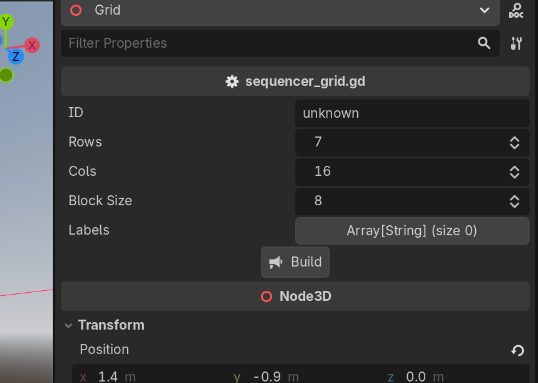
This is ideal for more expensive or long running tasks that need to be set up and run once. Internally, all that's needed is an @export_tool_button directive and callable:
@export_tool_button("Build") var execute := rebuild

func rebuild() -> void:
  # Clear the target first.
  for c in get_children():
    remove_child(c)
    c.queue_free.call_deferred()
  # Place nodes.
  place_nodes()
There are a few extra caveats to this approach:
- Nodes need to have their
ownerproperty set to actually appear in the editor - just creating a child is not sufficient:
var node := Node3D.new()
add_child(node)
node.owner = get_tree().edited_scene_root- Setting some properties on the nodes in the same frame they are positioned can have unexpected results - for example, naming collisions with the previously freed nodes. To get around this,
set_deferredwill simply set the property after the frame is complete, which solves this issue in most cases - for example,parent.set_deferred("name", "Labels")
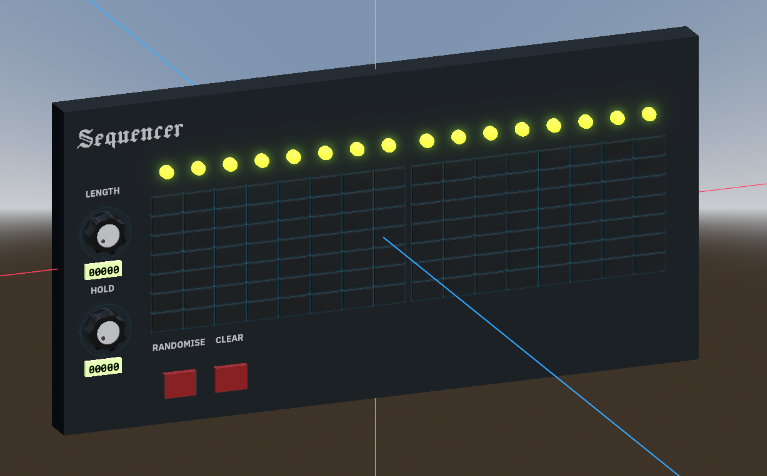
Despite these caveats it's still just as simple to set up a tool button as a pre-save hook. As you can see in the above screenshot, we can also use other @export properties to create powerful, configurable editor tools - the tool shown generates a grid of sequencer buttons with configurable width, height and block size:
Editor scripts
Godot offers another tool for in-editor automation, EditorScript, which essentially allows you to run some code in the editor with Ctrl-X. I've experimented with this too, but my personal view is that tool buttons are a better choice - you are essentially getting the same single-run functionality but with the added benefit of GUI configuration. You also have less visibility over the node or scenes that the EditorScript is operating on, which could lead to frustrating mistakes. The option is there if you need it though!
Runtime automation?
The techniques discussed in this post all deal with in-editor automation - in other words, code that runs before the game builds or runs. An alternative approach is to set up a scene at runtime via scripts instead, which may be necessary if the layout of a scene is based on the game's state. However, I'd advocate for using in-editor automation where at all possible for a few reasons:
- A scene's computed layout is visible in the editor window. For me this makes it a lot easier to visualise the game during development.
- Iterating on layout changes does not required launching the game and navigating to the area being edited.
- With runtime automation, if a scene's layout is fixed recreating it every time the player loads it is redundant and can slow down your game.
Setting up things at runtime certainly does have uses - but removing as much setup code as possible from the game's runtime scripts can improve performance, reduce complexity and result in quicker iteration.
Summary
There aren't many Godot projects that can't benefit from some time-saving automation. The two approaches here, pre-save hooks and tool buttons, provide some solid building blocks that should cover most use cases - thought I'm there are additional in-editor automation techniques I've yet to discover (or the Godot team has yet to build!).